Zenith · Chrome extension
Set up your Chrome new tab with Zenith.
Install Zenith in desktop Chrome, open a new tab, and start with the bookmarks already in your browser. Then add a few tasks, choose your background, and try layout controls if you need them.
Add Zenith to Chrome ↗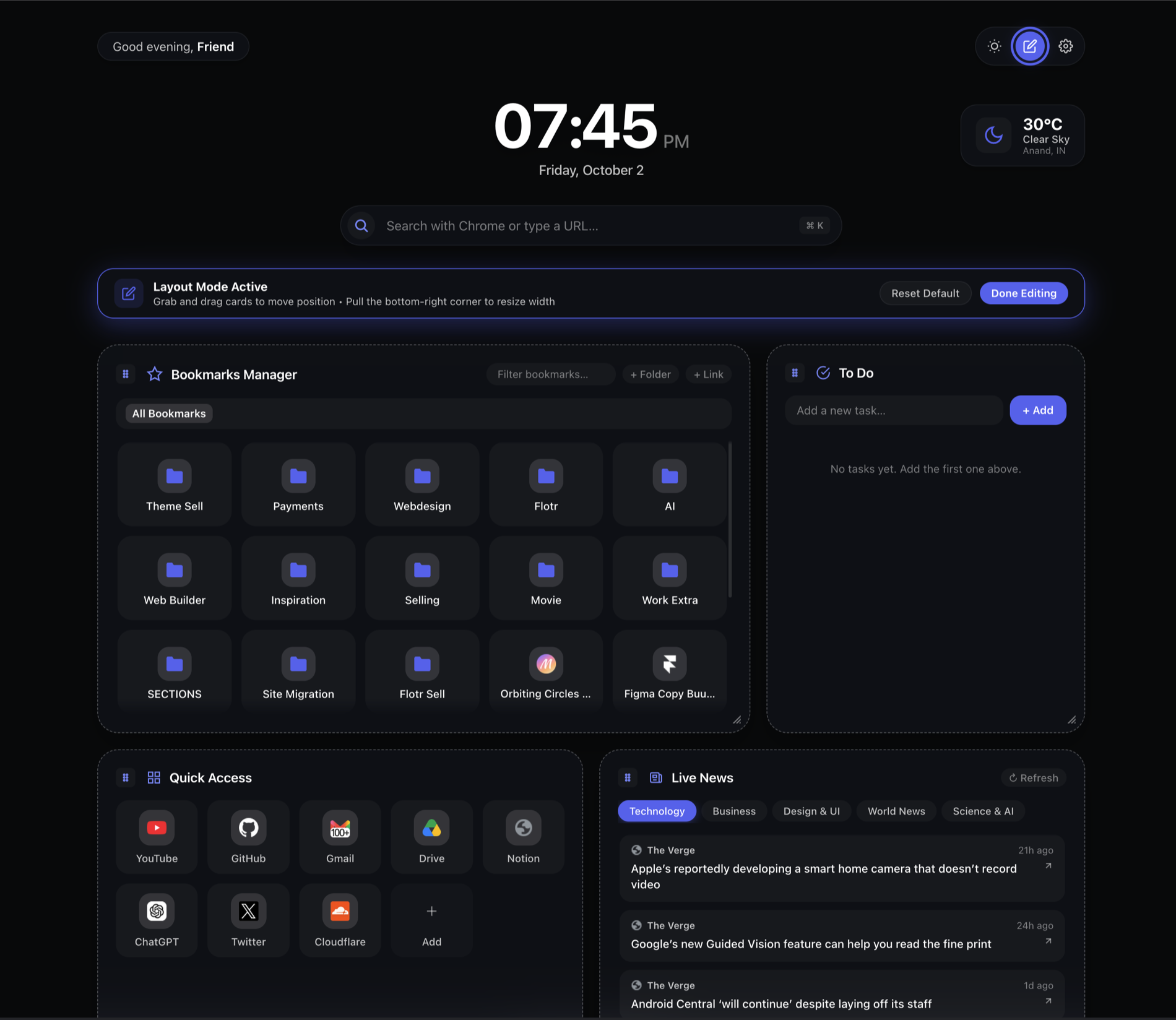
1. Install Zenith from the Chrome Web Store
Use Chrome on a desktop computer to open the official Zenith listing. Choose Add to Chrome and review the permission prompt. Zenith replaces the new tab page, so the change becomes visible when you open a new tab.
Zenith is designed for desktop Chrome, not the new tab page in Chrome on Android or iPhone. If another extension already controls your new tab, check Chrome’s extension settings and choose which new tab extension you want to use. You do not need to remove your normal Chrome bookmarks.
2. Show and organize your Chrome bookmarks
Find Bookmarks Manager on the dashboard. Browse the existing bookmark folders in your Chrome profile, filter the visible bookmarks, or use + Folder and + Link to add something.
Changes in Zenith update your actual Chrome bookmarks. Edits made through Chrome refresh in Zenith in real time. This means deleting a Chrome bookmark in Zenith is an actual bookmark change, rather than hiding a duplicate shortcut. Read how the bookmark manager works before reorganizing a large collection.
3. Add a short to-do list and your shortcuts
In To Do, enter a task and choose + Add. Mark it complete when you finish. Start with the next few actions you want to remember when you open the browser.
Use Quick Access for the apps and websites you open frequently. This area is separate from Chrome’s bookmark collection. Tasks are included in Free and are saved locally in the profile you use.
4. Change the new tab background and accent color
Choose Settings to open Customize Dashboard. Pick an accent color and a background. You can choose a wallpaper, use a flat background, enter a custom image URL, or upload a local wallpaper.
Accent colors and backgrounds are available in Free. Online wallpapers load from their providers when used. Check that your choice keeps bookmark labels and task text legible. See the customization walkthrough for the difference between appearance controls and Pro section styling.
5. Try Pro layouts when you need more control
The seven-day Pro preview requires no card. During the preview, open layout mode, drag sections using their handles, and resize sections using the bottom-right corner. Choose Done Editing when the dashboard fits your work.
Pro also lets you control visible widgets, bookmark display layouts, and section styling. After the preview, Free continues; upgrading is optional. Pro is $12 USD once under the lifetime licence terms, with checkout managed by Paddle.
Before relying on your new workspace
Tasks, shortcuts, preferences, and layouts are stored locally. Zenith does not automatically copy that workspace to another computer. Chrome’s own settings govern cross-device synchronization of real Chrome bookmarks.
Weather needs a selected city and an internet connection; news and remote wallpaper sources also use external services. Check Settings to choose the available online options you want, and read the privacy policy for the services involved.
If the new tab does not change, check that Zenith is enabled in Chrome’s extension settings. For licensing or setup help, use Zenith support.