Zenith · Chrome extension
Your Chrome bookmarks, on every new tab.
Zenith puts your existing Chrome bookmarks on the new tab page. Edit a bookmark in Zenith and it updates in Chrome; edit it in Chrome and the dashboard refreshes in real time.
Add Zenith to Chrome ↗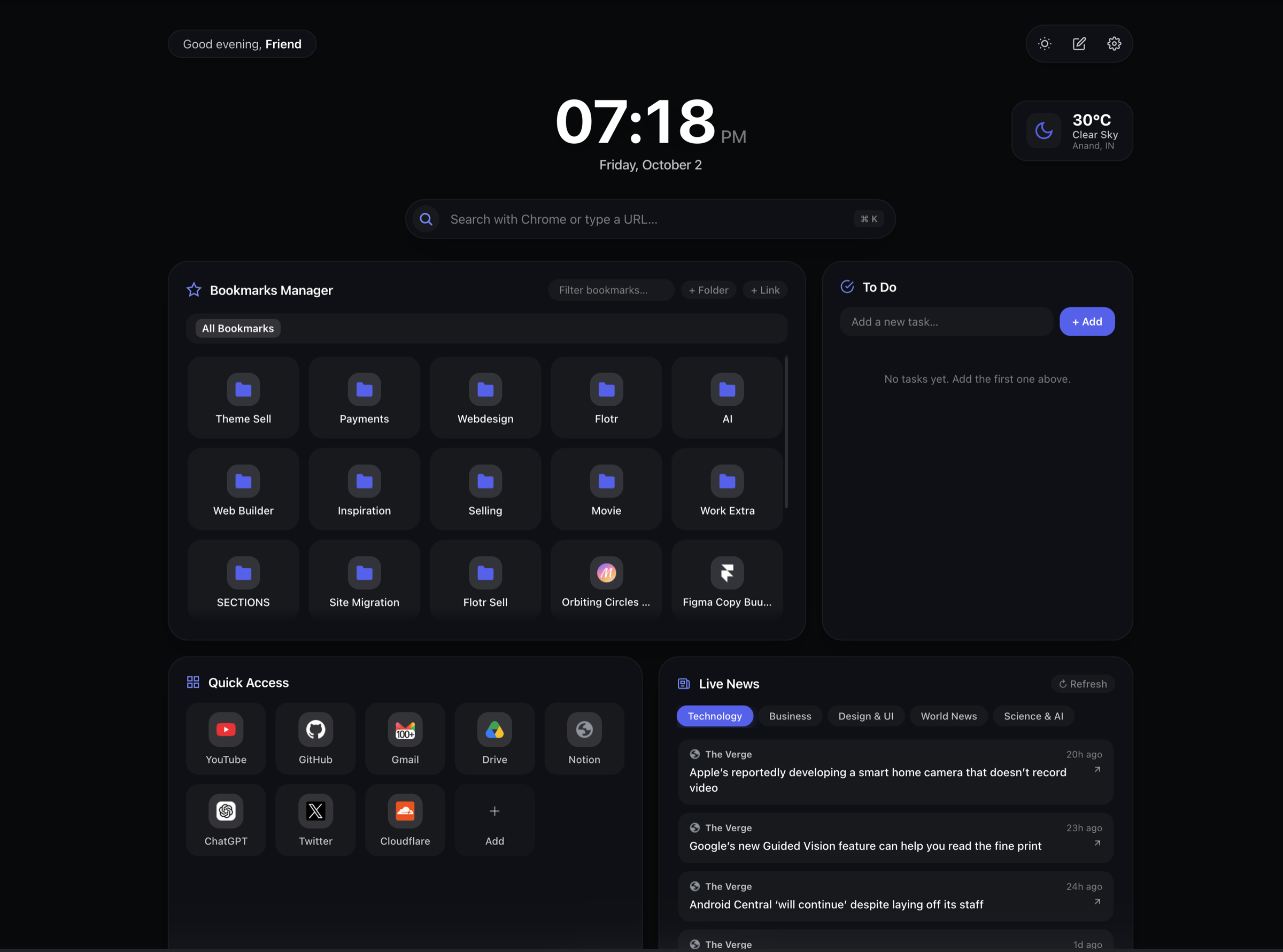
One bookmark collection, two places to edit it.
You do not need to rebuild a separate library of links to use Zenith. Its bookmark manager reads the bookmarks already in your Chrome profile. Folders and links become part of the dashboard you see when you open a new tab.
Changes are bidirectional: editing a bookmark through Zenith changes the underlying Chrome bookmark, and changes made through Chrome appear in Zenith. Treat these as real edits to your bookmarks, including when you remove a link or reorganize a folder.
This is useful when you want a visual starting point for work while keeping Chrome’s normal bookmark tools available.
How to show Chrome bookmarks on your new tab
- Install Zenith from the Chrome Web Store using desktop Chrome and review the requested permissions.
- Open a new tab. Find the Bookmarks Manager section and browse your existing folders.
- Use the bookmark filter to narrow the visible links. Use + Folder or + Link when you want to add something.
- Use the bookmark’s edit controls to update it. You can also make changes in Chrome’s bookmark manager and return to Zenith to see them.
Zenith needs Chrome’s bookmarks permission to display and edit this collection. Bookmark titles and URLs are processed locally for these features; they are not sent to Flotr Agency. Read the privacy policy for details about the extension’s other services.
What is free, and what requires Pro?
Reading and editing your bookmarks are included in Zenith Free. You can also use tasks, search, quick-access shortcuts, weather, optional news, accent colors, and backgrounds.
Pro adds the layout toolkit: move and resize dashboard sections, control widget visibility, switch bookmark display layouts, and adjust section styling. Eligible users can preview Pro for seven days without a card. After the preview, the core bookmark manager remains free. Compare the plans.
Does bookmark editing sync between computers?
The real-time editing described here is between Zenith and Chrome in the same browser profile. Synchronizing bookmarks between devices depends on your own Chrome synchronization settings.
Zenith’s tasks, shortcuts, layout, and preferences are stored locally. A Pro licence that works on up to three personal devices does not itself synchronize those workspaces.
What happens if I remove Zenith?
Your bookmarks belong to Chrome. Removing Zenith does not remove the browser’s bookmark collection. Edits you made to actual Chrome bookmarks remain real bookmark edits. Zenith-specific data, such as locally stored tasks and preferences, is separate from those bookmarks.
If you only need your favorite app links, you can also use Quick Access. That shortcut area and the Chrome bookmark collection serve different purposes.