Zenith · Chrome extension
Keep today’s tasks on your Chrome new tab.
Zenith includes a simple to-do list on the Chrome new tab page. Add tasks, mark them complete, and keep your next steps visible beside your bookmarks and shortcuts.
Add Zenith to Chrome ↗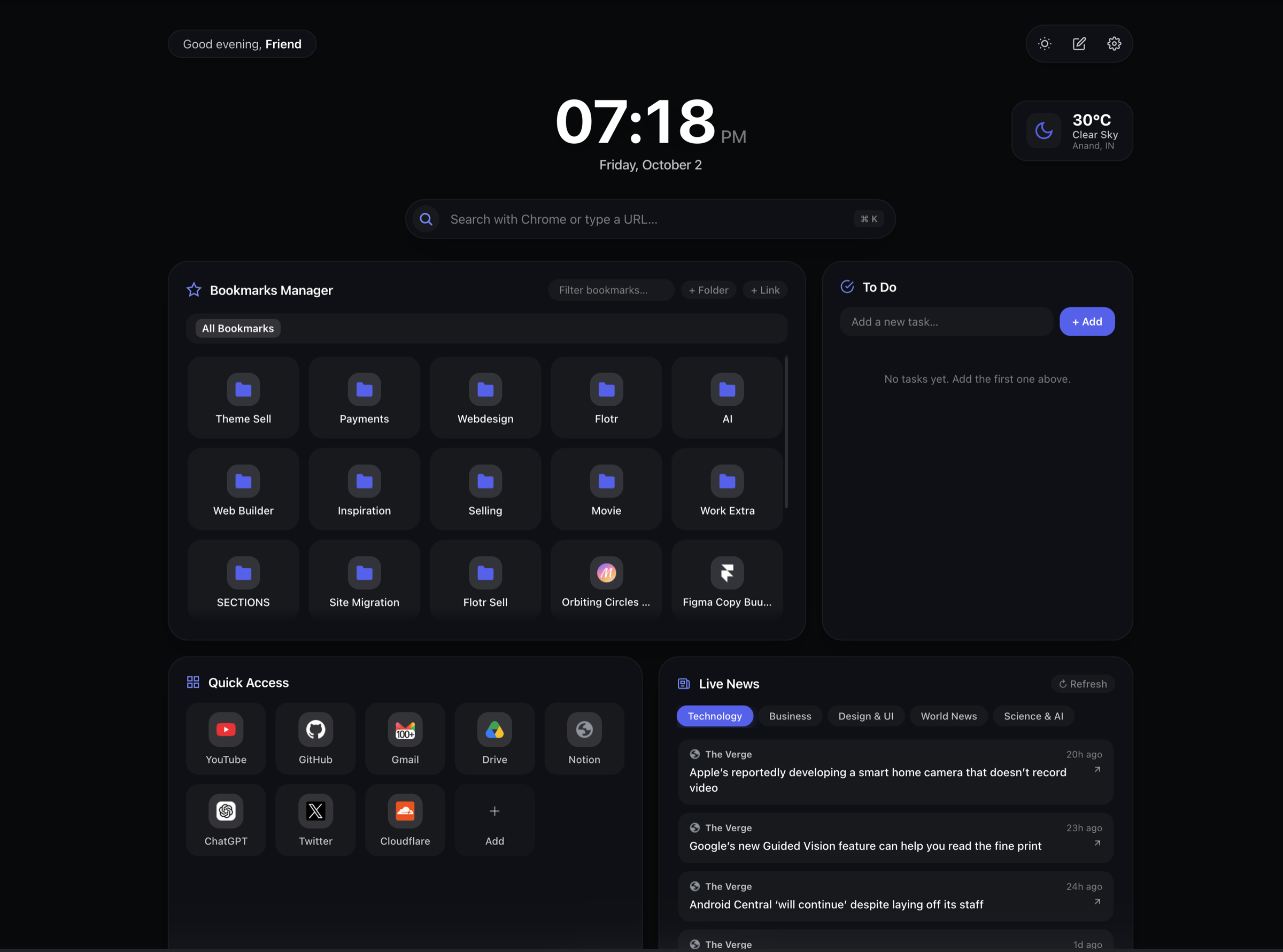
A task list where you start browsing
A separate task app can be easy to forget once you start opening websites. Zenith keeps a small list on the page you see when you open a new Chrome tab, so you can check what you meant to do before navigating elsewhere.
Use it for concrete next steps: reply to a client, review a document, or finish a draft. It is a simple personal checklist rather than a team project-management system. Zenith does not claim to add shared projects, calendar scheduling, or automatic task synchronization.
How to add a to-do list to Chrome’s new tab
- Open Zenith’s official Chrome Web Store listing in desktop Chrome and install the extension.
- Open a new tab and find the To Do section.
- Type a task into Add a new task… and choose + Add.
- Mark a task complete when you finish it. Return to the dashboard when you need to review the list.
Pair the list with your Chrome bookmarks: keep a project’s links in a bookmark folder and use the task list to remember your next action. You can keep frequently used apps in Quick Access.
Free tasks, optional layout controls
The to-do list is included in Zenith Free, along with search, bookmarks, shortcuts, weather, optional news, and basic visual personalization. You do not need to purchase Pro to keep adding and completing tasks after your preview ends.
If you want the task list in a different position or need more room, Pro lets you move and resize dashboard sections. Pro also includes widget visibility controls and deeper styling. The seven-day Pro preview requires no payment card; the optional Pro licence costs $12 USD once. See the Free and Pro comparison.
Where are my tasks saved?
Tasks are saved locally in the Chrome profile where you use Zenith. They are not automatically shared with another computer or browser profile. Opening the same Pro licence on another device does not copy your task list.
Removing the extension removes its Chrome storage. Avoid using the dashboard as the only copy of irreplaceable information, and read the privacy policy for storage and reset details.
Make the dashboard suit your day
Start with a few tasks you can act on now. Choose an accent color and background that help you read the page comfortably. If you prefer less information, review the widget options available during the Pro preview.
Weather and news use external services. Tasks are stored locally, but that does not mean every feature in the dashboard operates offline. Our setup guide explains the tools and their limits in one place.